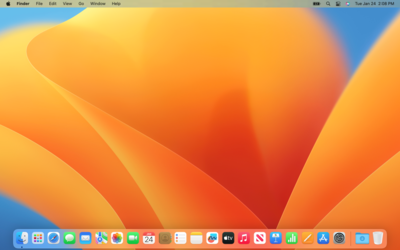
Ever found yourself buried in a sea of open windows and applications, needing to access a file or folder on your desktop quickly? macOS offers a super handy shortcut to clear the clutter and show your desktop within seconds. Here’s how you do it:
Using Mission Control
Mission Control is your go-to feature for managing windows and virtual desktops on macOS. To use Mission Control to show your desktop:
- Swipe up with three fingers on your trackpad. This gesture activates Mission Control.
- Once in Mission Control, swipe down with three fingers, and you’ll be returned to your desktop, with all windows moved aside.
Using Hot Corners
Hot Corners allow you to trigger certain actions by moving your cursor to one of the corners of your screen. To set up a Hot Corner for showing your desktop:
- Open System Preferences from the Apple menu.
- Click on Mission Control.
- Click on Hot Corners… at the bottom left.
- Choose a corner and select Desktop from the dropdown menu.
- Click OK to save your changes.
Now, whenever you move your cursor to the corner you selected, macOS will slide all open windows aside, revealing your desktop. To return to your windows, simply move your cursor away from the corner.
Keyboard Shortcut
For keyboard enthusiasts, macOS also offers a direct shortcut:
- Press Command (⌘) + F3 to instantly show your desktop.
To return to your windows, press Command (⌘) + F3 again.
Conclusion
Knowing how to quickly access your desktop can streamline your workflow and make it easier to find what you need. Whether you prefer gestures, hot corners, or keyboard shortcuts, macOS has you covered.
Experiment with these methods and choose what works best for you. Happy computing!
Leave a Reply